FM WhatsApp is a popular modified version of WhatsApp that offers more features on top of the standard version. A common problem users encounter is sending videos: the regular version of WhatsApp usually compresses videos, resulting in reduced image quality. If you want your videos to maintain their original resolution, FM WhatsApp provides a solution, and you can even find the FM WhatsApp 9.11 APK download online to access the latest version with improved media sharing options, making it easy to send high-definition videos without sacrificing resolution.

1. Understand why videos lose quality
When you send a video via the standard version of WhatsApp, the app automatically compresses it. The purpose of compression is to reduce file size so the video can be sent quickly and save data. This process also reduces video resolution, making colors less vibrant and sharper. For example, details such as text or small objects in the video may become blurry, and the overall image may not be as clear as the original. Users looking for better quality options often turn to the FM WhatsApp latest version, which offers settings to send videos with minimal loss, maintaining more of the original clarity.
Compression affects all types of videos, whether recorded on a phone or downloaded from the internet. The higher the level of compression, the greater the loss of image quality. This effect is particularly noticeable for high-definition videos, long videos, or videos containing fast motion and complex scenes.
FM WhatsApp offers tools to avoid this automatic compression. By understanding why compression works, you can use these tools to maintain the original image quality of your videos, making them sharp and clear, closer to how they were originally recorded.
2. Check the video size
Before sending a video, be sure to check the file size. FM WhatsApp allows larger videos than standard WhatsApp, but there is still a size limit, typically around 1 GB. If your video exceeds this limit, it cannot be sent, or the app may automatically compress the video, thus reducing video quality.
To check the video size:
- On your phone, go to the Gallery or File Manager and locate your video.
- Look at the file details to see the size, usually shown in MB or GB.
If the video is too large:
- Trim the video: Use a simple video editor to cut out unnecessary parts. You can delete extra seconds or parts that are not valuable.
- Split the video: If the file is very long, you can split it into several parts and send them separately. This will maintain the original file quality while meeting the file size limit.
- Avoid changing resolution: Some apps reduce resolution to decrease file size. For WhatsApp FM, try to maintain the original resolution whenever possible, as cropping or splitting does not reduce image quality.
Checking the video size before sending helps prevent upload failures and ensures the recipient receives the best quality video. This also saves time and avoids the frustration of repeated sending attempts.
3. Enable high-quality media sharing
In FM WhatsApp, you can share videos while preserving their original quality by adjusting the settings, as the app may still apply slight compression by default to save data. To maintain the full resolution and color of your clips, it’s important to enable High-Quality Media Sharing, which ensures your videos look just as crisp as when they were recorded. If you’re wondering how to send videos without losing resolution in FM WhatsApp, this setting is the key to keeping every detail intact.
Here’s how to do it step by step:
- Open FM WhatsApp and tap the three-dot menu in the top-right corner.
- Go to Settings→ FM Settings.
- Look for Media Sharing or Media Upload. This section controls how videos, photos, and audio are sent.
- Find the option that says Send Videos in High Quality, HD Upload, or High-Resolution Media, and turn it on.
- You may also see an option to send images in full quality—enabling this can help if you share both photos and videos frequently.
Enabling this feature will ensure that videos you send via FM WhatsApp maintain clarity, sharpness, and color. Please note that sending HD videos consumes more data and increases upload time, so Wi-Fi is recommended for sending large files.
By adjusting this setting, FM WhatsApp gives you greater control over your media files, ensuring that videos you share are just as clear and beautiful on your friends’ phones as they are on yours.
4. Send as a file instead of a video
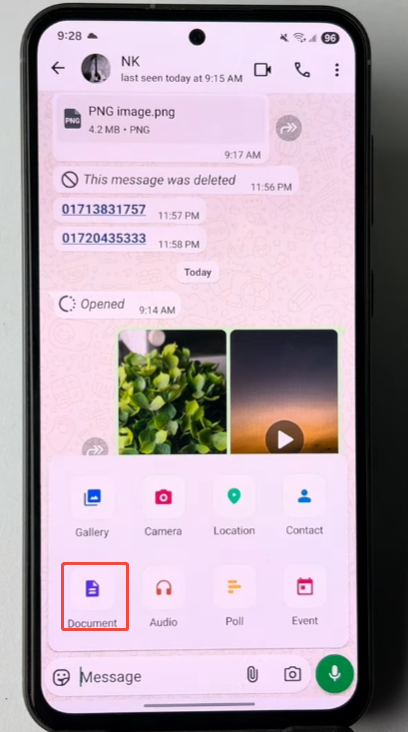
A highly effective way to maintain the original quality of a video is to send it as a file, rather than sending it via the gallery in a standard video format. If you send a video normally, FM WhatsApp may slightly compress it to save data. Sending it as a file completely avoids this problem. Here’s how you can do it:
- Open the chat with the person you want to send the video to.
- Tap the attachment icon in the chat.
- Instead of choosing Gallery, select Document.
- Navigate to the folder where your video is stored and select it.
- Tap Send.
By doing this, the video is sent exactly as it is stored on your device. No compression, no loss of resolution, and no change in colors or details.
Extra tip
If the recipient wants to watch the video directly without downloading the full file, they may need to use a media player that supports direct playback of large files. Otherwise, downloading first will provide the best viewing experience.
5. Use a stable internet connection
Sending high-definition video requires a stable internet connection. High-definition videos are significantly larger than regular videos, so upload times may be longer. If your internet connection is unstable or the signal is weak, the upload may pause, fail, or even become corrupted, reducing video quality and potentially preventing the recipient from watching the video. Many users experiencing this issue have found that following simple FM WhatsApp problems fix steps, such as clearing cache or updating to the latest version, can help ensure smoother uploads and maintain video quality.
Here are some tips to improve your upload experience:
- Prefer Wi-Fi over mobile data: Wi-Fi connections are generally faster and more stable, reducing the risk of interruptions during uploads.
- Check signal strength: If you are using mobile data, please ensure you have a strong 4G or 5G network signal. A weak signal will significantly reduce upload speeds.
- Avoid multitasking on the network: Simultaneous streaming of video, downloading large files, or playing online games can slow down upload speeds. Please pause these activities before sending a video.
- Stay near your router: If using Wi-Fi, staying closer to the router can improve speed and stability.
- Be patient: Large videos may take several minutes to upload. Do not close the app or switch off your phone during the process.
By ensuring a stable connection, you can send videos smoothly without loss of quality, and the recipient will receive the video exactly as you expect.
6. Inform the recipient
When sending a video as a file in WhatsApp FM, it typically doesn’t appear in the chat window like a regular video preview. Instead, the recipient sees a document named after the video file. Therefore, they might not immediately realize it’s a video or know how to play it. To ensure the recipient can watch it smoothly, you can:
- Send a short message along with the file, explaining that it is a high-quality video and that they should download it completely before playing.
- Recommend a video player app if their default player cannot open the file. Most smartphones can play standard video formats like MP4, but some older phones may need a different app.
- Remind them not to forward immediately without downloading, as forwarding partially downloaded videos can cause playback problems.
- Optional tip: If the recipient is sending back the video or saving it, advise them to keep it in a folder with enough storage space to avoid issues with large files.
By providing these instructions, you can ensure that the video is presented as you expect, avoiding unexpected compression or playback issues. Communicating about video formats helps avoid confusion and improves the viewing experience for both parties.
7. Additional tips
- Check your phone storage: High-quality videos will take up more storage space on your phone. Before sending, please ensure your phone has enough available storage space. If your phone’s storage is running out, the upload may fail, or the application may run more slowly. Deleting old files or moving them to a cloud service can solve this problem.
- Compress smartly if needed: If your video files are very large, consider using a video compression application, which can maintain the original resolution but slightly reduce the file size. This will be very useful if your internet connection is slow or the recipient has limited storage space.
- Keep FM WhatsApp updated: Developers frequently release updates to improve media sharing and increase file size limits. Regular updates ensure you always have the best features for sending high-quality videos.
- Use a reliable internet connection: Uploading large videos requires a stable Wi-Fi or mobile data network. An unstable network connection may cause upload interruptions, resulting in partial upload or transmission failures. For best results, please use a stable Wi-Fi connection when sending large files.
- Inform the recipient: If you send the video as a file instead of through a gallery, the recipient may need to download the entire video before playing it. Please inform them in case they encounter any problems watching the video.
- Organize your videos: If you frequently send videos, organize them into folders or albums. This will make it easier to find and send the correct files, avoiding errors.
- Test before sending important videos: For very important videos, please send a small test video first to ensure that the settings are correct and the video quality is not affected. This will prevent problems when sending larger files.
Conclusion
Easily send HD videos in FM WhatsApp without loss of resolution by simply following these steps: Enable HD upload, send as a file, and check your network connection to share clear, lossless videos. Whether you’re sharing personal moments or important media files, FM WhatsApp ensures your videos maintain a clear, professional visual appearance.