Many FMWhatsApp users experience delayed notifications, missing messages, or sudden disconnections because Android aggressively stops background apps to save battery. If you are facing fmwhatsapp notification delay problems, this guide will help you keep the app running smoothly.
In this article, you’ll learn the best fmwhatsapp background fix methods, how to disable battery optimization for fmwhatsapp, and how to keep fmwhatsapp active all the time.
Why Android Kills FMWhatsApp in the Background
Modern Android systems use aggressive battery-saving technology. When the phone detects an app using background resources, it may:
- Force close the app
- Delay notifications
- Restrict background internet
- Disable auto-start
- Pause message syncing
Signs Your FMWhatsApp Is Being Killed
You may need an fmwhatsapp background fix if you notice:
- Notifications arriving late
- Messages only appearing after opening the app
- Voice calls not ringing
- Status updates loading slowly
- App disconnecting during standby
- Random logout issues
These are classic fmwhatsapp notification delay symptoms.
1) Disable Battery Optimization for FMWhatsApp
The most important fix is to disable battery optimization for fmwhatsapp.
Steps:
- Open Phone Settings
- Go to Apps
- Select FMWhatsApp
- Tap Battery
- Choose:
- Unrestricted
- No restrictions
- Don’t optimize
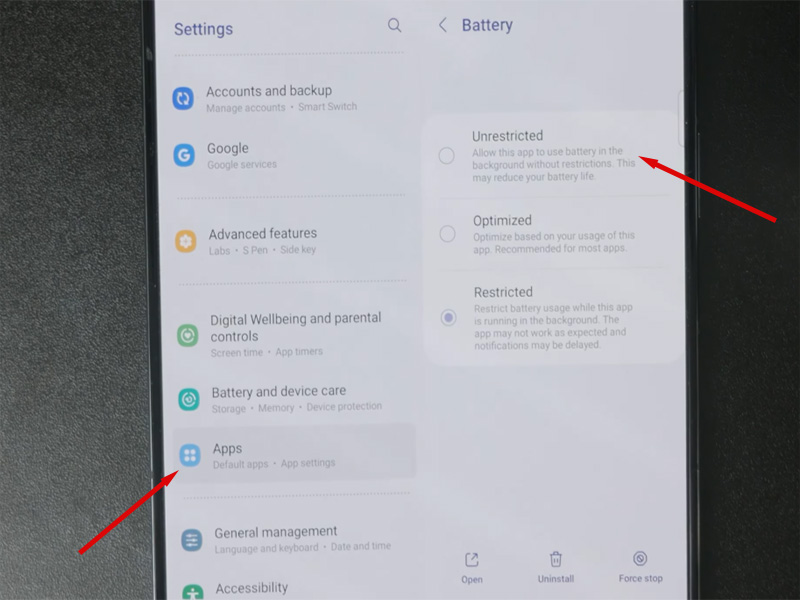
Different brands use different names, but the goal is the same: stop Android from limiting FMWhatsApp in the background.
This is the most effective solution for fmwhatsapp notification delay.
2) Enable Auto-Start Permission
Some Android devices block apps from launching automatically.
To enable auto-start:
- Open Settings
- Go to Apps > Special Access
- Find Auto-start management
- Enable FMWhatsApp
This helps keep fmwhatsapp active all the time even after restarting your phone.
3) Lock FMWhatsApp in Recent Apps
Many phones close apps when memory gets low.
To prevent this:
- Open FMWhatsApp
- Open Recent Apps screen
- Long-press FMWhatsApp
- Tap:
- Lock
- Keep Open
- Pin App
4) Allow Background Data Usage
If background internet is disabled, notifications may stop completely.
Enable background data:
- Open Settings
- Go to Apps > FMWhatsApp
- Tap Data Usage
- Enable:
- Background Data
- Unrestricted Data Usage
- Wi-Fi + Mobile Data
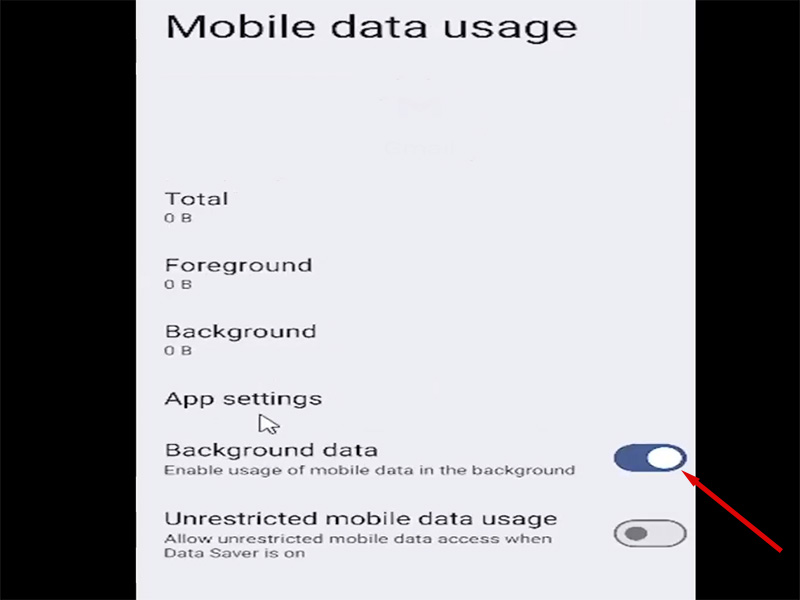
This reduces fmwhatsapp notification delay significantly.
5) Disable Adaptive Battery Features
Android’s adaptive battery system may pause FMWhatsApp automatically.
Turn it off:
- Open Battery Settings
- Disable:
- Adaptive Battery
- Sleeping Apps
- Deep Sleeping Apps
- App Freezing
Add FMWhatsApp to the whitelist.
This helps keep fmwhatsapp active all the time.
6) Use the FMWhatsApp Latest Version
Older builds may have compatibility problems with new Android systems.
Installing the fmwhatsapp latest version can improve:
- Notification delivery
- Background stability
- Battery behavior
- Anti-crash fixes
- Connection reliability
The latest updates usually include optimized background processes.
7) Avoid Third-Party Cleaner Apps
RAM cleaner apps often force-close FMWhatsApp silently.
Avoid:
Battery booster apps
RAM cleaner tools
Auto task killers
Aggressive antivirus optimizers
These apps commonly cause fmwhatsapp notification delay.
Common Issues & Troubleshooting
If FMWhatsApp is still being killed in the background, try these troubleshooting tips:
- Notification Delay Persists:Clear FMWhatsApp’s cache (Settings > Apps & Notifications > FMWhatsApp > Storage > Clear Cache) and re-enable notifications in app settings.
- App Crashes in Background:Reinstall the fmwhatsapp latest version and restore your chat backup – corrupted app files often cause background crashes.
- System Still Kills the App:Check if you have any third-party battery saver apps (e.g., Greenify) – these can override your settings and kill FMWhatsApp. Uninstall or whitelist FMWhatsApp in these apps.
Why FMWhatsApp Latest Version Is Non-Negotiable
We’ve emphasized this throughout the guide, but it’s worth repeating: the fmwhatsapp latest version is critical for background stability. Here’s why:
- Developers fix background crash bugs and optimize app performance to avoid being killed by the system.
- Latest versions include better compatibility with new Android OS updates, which often change background management rules.
- Anti-ban patches in the fmwhatsapp latest version also improve background activity without triggering system alerts.
Conclusion
If your phone keeps stopping FMWhatsApp in the background, the solution is usually related to Android battery management.
The best fmwhatsapp background fix is to:
- disable battery optimization for fmwhatsapp
- Allow auto-start
- Enable background data
- Use the fmwhatsapp latest version
- Lock the app in memory
Following these steps will help keep fmwhatsapp active all the time and greatly reduce fmwhatsapp notification delay problems.