Many users download FM WhatsApp because it has a wealth of additional features and customization options. However, some users encountered a common problem during the installation process: even after successfully completing the FM WhatsApp 9.11 APK download, the application could not be installed, or the installation stopped midway, leaving them unsure of how to proceed.
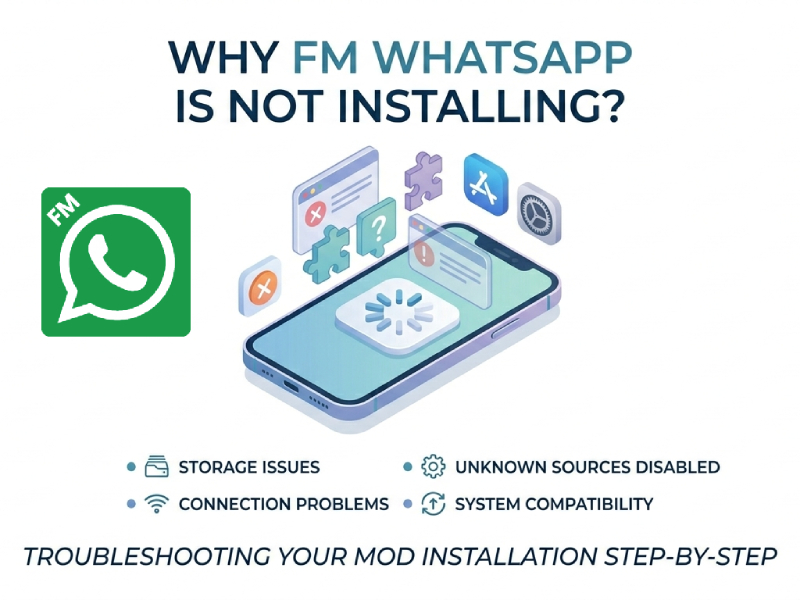
If you want to know why FM WhatsApp cannot be installed, there may be several reasons. In most cases, the problem is related to device settings, storage space, app conflicts, or system compatibility.
This guide will explain the most common causes and their corresponding solutions.
1. Unknown App Installation Is Disabled
One of the most common reasons is that your phone blocks apps installed from outside the Play Store.
Most Android phones do not allow the installation of third-party apps by default. If this setting is off, the APK file may open, but installation will not begin.
To check this:
- Open Settings
- Go to Security or Privacy
- Find Install Unknown Apps
- Allow permission for your browser or file manager
After turning this on, try installing FM WhatsApp again.
2. Not Enough Storage Space
Another common issue is low storage.
Even if the APK file is small, the app still needs extra space for installation files, cache, and future data.
You can check your storage by:
- Opening Settings
- Going to Storage
If your device is almost full, try:
- Deleting unused apps
- Removing duplicate photos or videos
- Clearing app cache
After freeing some space, install the app again.
3. Old Version Is Still Installed
Sometimes the installation fails because another version already exists on the device.
For example:
- Older FM WhatsApp version
- Another modified WhatsApp version
- A package with the same app signature
This can cause a package conflict.
You may need to:
- Back up your chats
- Remove the old version
- Restart your phone
- Install the new version again
This often solves installation problems.
4. The APK File Is Incomplete
Sometimes the file itself is the problem.
If the download is interrupted, the APK file may be incomplete or corrupted. In this situation, Android might display a message similar to the following::
- “App not installed”
- “Parsing error”
- “Cannot open file”
A fresh download often fixes this.
Make sure the file downloads completely before opening it.
5. Android Version Compatibility
Not all APKs are compatible with all Android versions.
Some FM WhatsApp versions are designed for newer Android systems. If your phone is using an older operating system, the app may fail to install.
You can check your Android version in:
- Settings → About Phone
If your system is older, you may need a version that matches your device.
6. Security Apps Blocking Installation
Some phones include built-in security tools that scan APK files before installation.
These tools may pause or block the process automatically.
This can happen on phones from different brands with custom Android systems.
In this case:
- Check your phone’s security app
- Review blocked installation notifications
- Try the installation again after allowing permission
7. App Conflict With Official WhatsApp
In some cases, FM WhatsApp may not install because the official version of WhatsApp Inc. is already installed on your phone. This typically happens when two apps attempt to use similar system files, app data, or backup folders, so even if you are trying to install FM WhatsApp latest version, the existing official app can cause conflicts that prevent a smooth installation.
For example, the Android system may detect that a new app package is too similar to an existing app on the device. When this happens, the installation may stop, or you may see messages such as “App not installed” or “Package conflict”.
This can also happen if you have previously installed other modified versions of WhatsApp and still have some files from the old app stored on your phone. Even if the old app has been deleted, residual files can sometimes still affect the new installation.
To check this, look at your installed instant messaging apps to see if there are older versions of WhatsApp or duplicate app folders. Some users have resolved this issue by clearing old app files, restarting their phones, and then trying to install the app again.
Checking the backup folder in internal storage is also helpful. Sometimes, old media files or backup files can cause interference during the installation process, especially if multiple versions of WhatsApp have been used previously. Cleaning up unused files can make the installation process smoother.
8. System Cache Problems
Sometimes the problem isn’t with the APK file itself, but with the phone’s system cache. Android devices store temporary files to help apps open faster and run more smoothly. Over time, these cached files may age, become corrupted, or become incompatible with newer versions of the application.
In this situation, FM WhatsApp may fail to install even if the file has been downloaded correctly. You may see a message like “App not installed,” or the installation process may stop without any apparent reason.
If you have previously downloaded multiple versions of the APK file, you can also delete the older APK files from the “Downloads” folder. Sometimes, the Android system will try to read older installation files, which can cause conflicts.
After clearing the cache and deleting unused files, please restart your phone and try installing again. In many cases, this helps the system correctly identify new files and complete the installation smoothly.
Common Installation Error Messages
Here are some messages users often see:
| Error Message | Possible Reason |
| App not installed | Package conflict or broken APK |
| Parse error | Incomplete file or unsupported Android version |
| Installation blocked | Security settings or unknown sources are disabled |
| Cannot open file | Download issue or file corruption |
Knowing the message can make troubleshooting easier.
Tips Before Installing FM WhatsApp
Spend a few minutes preparing your phone before installing FM WhatsApp to make the installation process smoother. Many installation problems arise because users overlook some small but important check steps.
Make sure your device has enough available storage space. Even though the APK file looks small, the application still needs additional space to store installation files, application data, and media files. Reserve at least a few GB of free space to avoid unexpected errors.
Please check your network connection before downloading the APK file. An unstable network connection or weak signal may cause the file download to stop halfway through, leading to subsequent installation errors. For larger files, a stable Wi-Fi connection usually works better.
It’s also best to delete the old APK files from the “Downloads” folder. Sometimes, multiple versions of the same app can cause confusion, and you might accidentally install an older version instead of the latest one.
Before you begin the installation, please close all applications running in the background. This can free up memory and help your phone complete the installation more smoothly, especially on older devices.
Another helpful step is to restart your phone before installation. This will clear temporary system files and may fix some minor background issues that might be preventing the installation.
If you have used other versions of WhatsApp before, please be sure to back up your chat history and media files. This way, you can more easily preserve important conversations and files after switching or updating, and if you want extra privacy, features like FM WhatsApp hide last seen can help you control who sees your activity without affecting your backups.
How to Avoid Installation Problems in the Future
After FM WhatsApp is successfully installed, it is recommended that you clean your device regularly in order to update it in the future. Many installation problems are caused by old files, outdated versions, or system settings that have not been checked promptly. To get started smoothly, learning how to use FM WhatsApp effectively can help you avoid common issues and make the most of its features while keeping your app up to date.
A simple habit is to regularly clean up your downloads folder. Old APK files can sometimes cause problems, especially if you’ve downloaded multiple versions. Keeping only the latest files can simplify the installation process.
Regularly checking your phone’s storage space is also helpful. Apps, photos, videos, and cache files will gradually take up space on your device. Maintaining a certain amount of available space helps new applications install more smoothly.
Another useful step is to keep the Android system updated. New system updates typically improve application support and fix some compatibility issues. Even minor system updates can make the installation more stable.
You should also check application permissions regularly. Settings such as file access permissions or unknown application installations may change after system updates or security scans. Checking these settings before installation can save time.
By keeping your devices clean, organized, and up-to-date, future FM WhatsApp installations or updates will typically be quicker and easier.