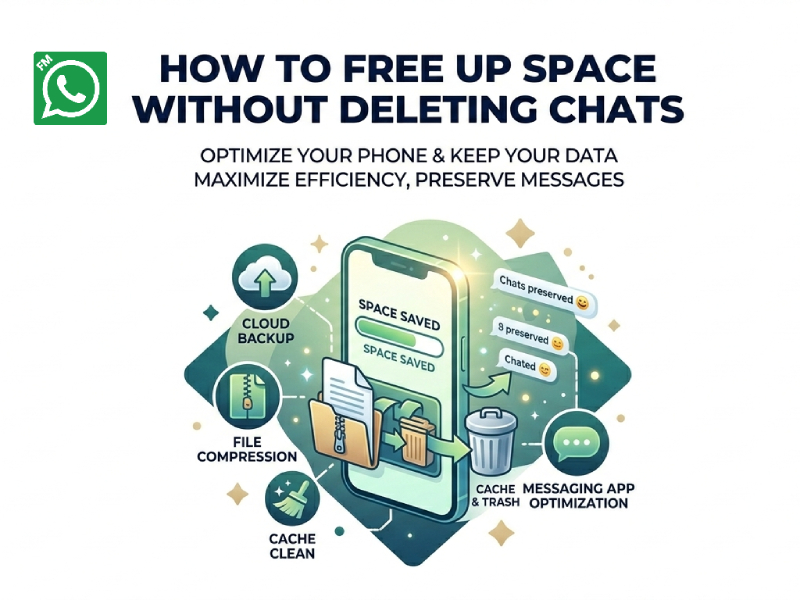
FM WhatsApp is commonly used for sending and receiving messages, as well as sharing photos, videos, and voice messages. Over time, this app may take up a significant amount of WhatsApp storage on your phone as media files and chat data continue to grow. This kind of resource consumption often happens without the user noticing, and many users don’t realize the problem until their phone starts running slowly or their storage space is about to run out.
The good news is that you don’t need to delete your chat history to free up space. There are several simple ways to reduce storage usage while preserving all your conversations completely.
This guide will introduce some practical methods to help you effectively manage your FM WhatsApp storage space.
Why FM WhatsApp Uses So Much Storage
FM WhatsApp often takes up more storage space than many users expect. This is usually attributed to the way the app processes media files and chat data in the background.
The main reason is the sharing of media content. Whenever you receive a photo, video, or voice message, it will be saved directly to your phone. In active chats or groups, this content accumulates rapidly, especially when video is involved.
Cached data is also a reason. FM WhatsApp stores temporary files to speed up chat loading. Although individual files are small, they accumulate over time and take up a considerable amount of space. Some users also move WhatsApp files to SD card to free up internal storage, but cached files can still build up unless they are cleared regularly.
Group chats often further accelerate the consumption of storage space. Large groups frequently share various updates, emojis, and videos, resulting in a constant influx of new files that are saved.
In short, this is not caused by a single feature, but by a combination of factors such as media downloads, duplicate files, and cached data, which cause FM WhatsApp to take up more and more storage space over time.
1. Clean Large Media Files First
One of the fastest ways to reduce storage is to target large files.
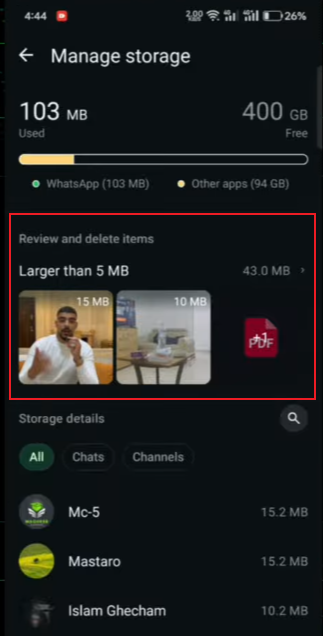
Inside FM WhatsApp, open the settings and go to storage management. There you can usually see:
- Chats ranked by storage usage
- Large videos and images
- Files that are forwarded many times
Videos are processed first, as they typically take up the most space. You can delete only the selected media files without affecting the chat history.
This method works because it targets items that actually consume a lot of storage space, rather than deleting the entire conversation.
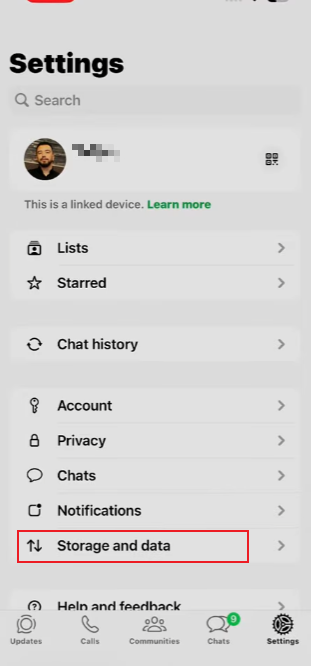
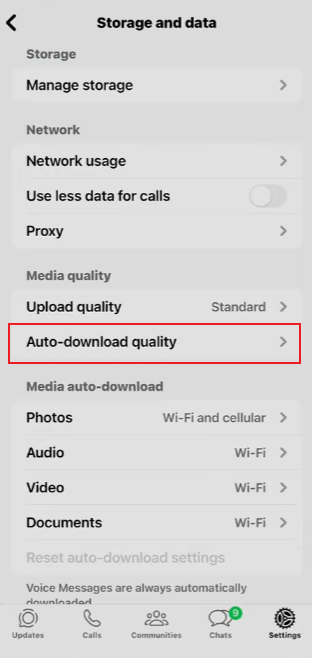
2. Manage Auto Media Download Settings
FM WhatsApp often automatically downloads media files when it receives a message, including photos, videos, audio, and sometimes documents from private chats and groups. While this makes viewing content faster, it can also cause storage space to be quietly filled up in the background, leading to problems similar to iphone storage full whatsapp, especially if large media files keep downloading without regular cleanup.
Adjusting automatic download settings is one of the most effective ways to reduce unnecessary storage space usage.
Inside the app settings, you can control when media is downloaded, such as:
- Only download images on mobile data
- Disable automatic video downloads in groups
- Limit media downloads on Wi-Fi for large files
- Keep audio or documents manual instead of automatic
Reducing automatic downloads gives you better control over what’s saved to your phone. You will only save the files that you actually choose to open, not everything that appears in the chat.
This small adjustment helps keep storage space usage stable, especially for active group chats that frequently share media content.
3. Clear Cached Data Regularly
The cache is temporary data that FM WhatsApp stores to speed up chat loading. As part of your WhatsApp data storage, this cached information may accumulate gradually without anyone noticing. Although it does not contain your chat content, it may still take up a considerable amount of storage space on your phone.
You can clear the cache through your phone’s app settings: Find FM WhatsApp, go to the Storage option, and then tap “Clear cache”. This operation only deletes temporary files, so your chat history, media files, and account data will not be affected.
Performing this task regularly helps free up valuable storage space and improves app performance, especially if you use FM WhatsApp daily for chats or group conversations involving large amounts of media.
4. Remove Duplicate and Forwarded Media
Group chats often lead to repeated media files being stored multiple times. For example, the same video may appear in different chats or forwarded messages.
To handle this:
- Check media folders inside FM WhatsApp
- Look for repeated images or videos
- Remove duplicates while keeping the original chat history
This step is useful if you are active in multiple group chats where the same content spreads quickly.
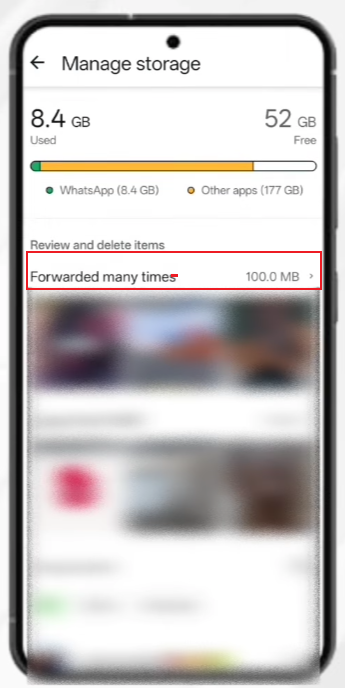
5. Use “Storage by Chat” View
FM WhatsApp typically provides storage usage details, showing the amount of space used by each chat session. This feature is very useful because it gives you a clear picture of where your storage space is going, eliminating the need for guesswork.
When this interface is opened, chat sessions are usually arranged in descending order of the space occupied. Group chats are often at the top of the list because they typically contain a large number of videos, pictures, and forwarded files.
You can click into a specific chat session to see exactly what content is taking up space—this content may include photos, videos, voice messages, or documents. One of the highlights of this feature is that you can delete only the media files that take up a lot of space, while keeping the text messages, thus ensuring the integrity of the chat history.
This method is efficient and precise, avoiding indiscriminate cleaning. Instead of randomly deleting files, you can focus your energy on the chat sessions that are actually taking up a lot of storage space.
6. Limit Video Auto-Saving in Groups
Group chats are often the main reason why FM WhatsApp storage space runs out quickly. Every day, the group receives a flood of videos, memes, voice clips, and forwarded content, most of which are automatically saved without your knowledge.
To effectively manage storage space, reducing the automatic saving of group videos is very helpful. You can turn off or limit the automatic download function for videos, so that they will not be saved to your phone unless you actively choose to open them. This simple setting can prevent your phone from accumulating a large number of unnecessary large files.
Developing the habit of not allowing group videos to be saved by default is also very useful. Instead of keeping all the content, download or save only the videos that are truly important. Most of the content in a group is often temporary and doesn’t need to take up your device’s storage space all the time.
In the long run, these small adjustments can have significant effects, especially when you are active in multiple groups.
7. Use Manual Media Review Habit
Instead of letting media build up, it helps to review files manually from time to time.
A simple routine can look like this:
- Open media folder once a week
- Check recent downloads
- Remove unnecessary videos or large files
- Keep only important images or documents
This habit keeps storage under control without requiring major cleanup later.
8. Keep Important Chats but Remove Heavy Attachments
Many users want to retain their chat history but don’t realize that the main storage hog is not the text messages, but the media files within them. Text records themselves take up very little space; the real space-consuming elements are photos, videos, and voice messages.
In FM WhatsApp, you can open various chat windows and view the “Shared Media” section. This makes it easier to distinguish important messages from large files. If you already keep backups through googledrive whatsapp, you can confidently remove old photos, videos, and documents that are no longer needed without deleting the entire conversation.
This method is particularly useful for active chats where the text contains important information but media files keep piling up. By cleaning only images, videos, or audio files, you can maintain the integrity of your chat history while quickly freeing up storage space.
This is a simple and effective way to keep the content organized without losing the context of the conversation.
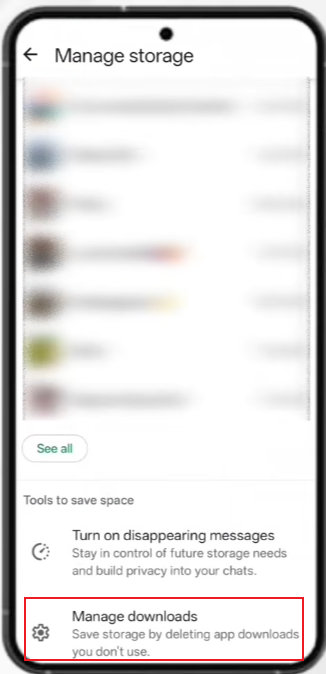
9. Organize Downloads Folder
Some files from FM WhatsApp are stored in your phone’s file manager instead of inside the app.
Go to your file manager and check:
- WhatsApp / FM WhatsApp media folders
- Downloads directory
- Video and image folders
Sorting these files manually helps remove hidden storage usage that is not visible inside the app itself.
10. Avoid Storing Unnecessary Forwarded Content
Forwarded content tends to multiply quickly. A single video can appear in many chats, leading to repeated storage use.
To keep things clean:
- Avoid saving forwarded media automatically
- Delete repeated content after viewing
- Keep only meaningful files
This keeps your storage stable over time without affecting chat history.
Final Words
FM WhatsApp’s storage space issues usually stem from accumulated media files, rather than the chat history itself. By managing downloaded content, clearing cache, deleting large files, and controlling the saving of group media files, you can free up significant storage space without losing any conversations.
Developing a few small habits is often enough to ensure that applications run smoothly and prevent storage space from being quickly filled up again.