Switching from the official WhatsApp app to FMWhatsApp doesn’t mean you need to lose your old chats. With the right local backup method, you can move your messages, media, and documents safely. In this complete guide, we’ll walk you through every step to restore FMWhatsApp without losing chats, cover the importance of fm whatsapp update download, and provide a detailed FMWhatsApp local backup restore guide to make the transition seamless.
Why Original WhatsApp Backup Won’t Sync Directly to FMWhatsApp
Before we dive into the steps, it’s crucial to understand why you can’t just tap “restore” and transfer your original WhatsApp backup to FMWhatsApp. Unlike the official WhatsApp, which syncs backups to Google Drive or iCloud, FMWhatsApp is a third-party modified app not affiliated with Meta. This means it can’t directly access cloud backups from the original app. You’ll need to rely on local backups to transfer your chats safely. The good news? With the right steps, you can easily migrate your original WhatsApp backup to FMWhatsApp and keep every message intact.
Step 1: FM WhatsApp Update Download
The first and most critical step to ensure a smooth backup restore is to use the latest version of FMWhatsApp. Older versions often have bugs that prevent backup recognition, leading to chat loss. Here’s how to safely complete fm whatsapp update download:
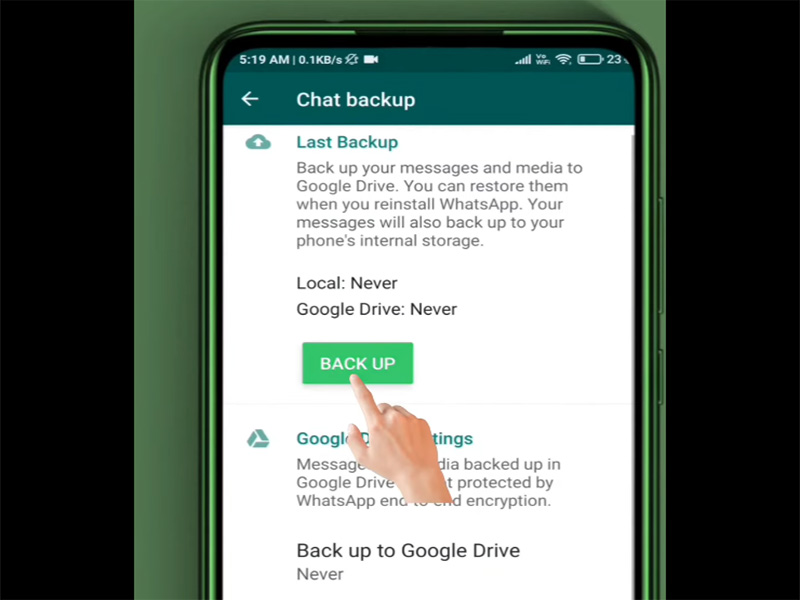
- Backup Your Original WhatsApp Chats First: Open the original WhatsApp, tap the three vertical dots in the top-right corner, go to Settings > Chats > Chat Backup, and tap “Back Up” to create a fresh local backup.
- Enable Unknown Sources: Go to your phone’s Settings > Security > Install Unknown Apps, and enable permission for your browser or file manager to install apps from unknown sources.
- Download the 2026 Latest FM WhatsApp Version: Visit our FMWhatsApp download site and download the latest stable version, which includes improved backup compatibility and anti-ban protection.
- Install FMWhatsApp: Locate the downloaded APK file in your file manager, tap to install, and wait for the process to finish. Do NOT open the app yet because we need to migrate the backup first.
Step 2: Migrate Original WhatsApp Local Backup to FMWhatsApp
FMWhatsApp relies on local backups stored in your phone’s internal storage. To restore old backup whatsapp, you’ll need to move the original WhatsApp’s backup file to the correct folder for FMWhatsApp to recognize it. Follow this simple process:
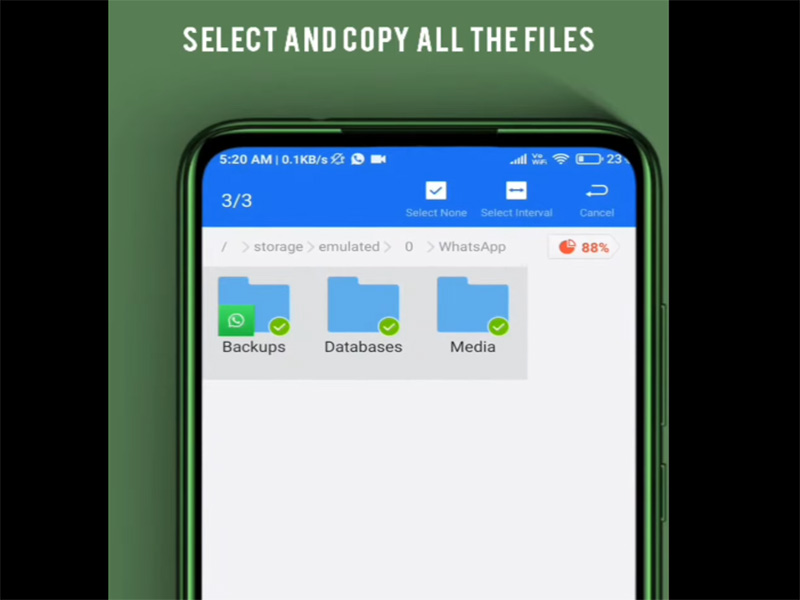
- Find the Original WhatsApp Backup File: Open your phone’s File Manager, navigate to Internal Storage > WhatsApp > Databases.
- Create a FMWhatsApp Folder: In your Internal Storage, create a new folder named “FMWhatsApp”. Inside this folder, create another folder named “Databases”.
- Copy the Backup File: Select the original WhatsApp backup file you want to restore, copy it, and paste it into the FMWhatsApp > Databases folder.
- Rename the Backup File (If Needed): Ensure the copied file named.
Step 3: Restore FMWhatsApp Without Losing Chats
Now that your original WhatsApp backup is in the correct folder, you can restore it to FMWhatsApp without losing any chats. Here’s the final step-by-step process:
- Open FMWhatsApp on your device.
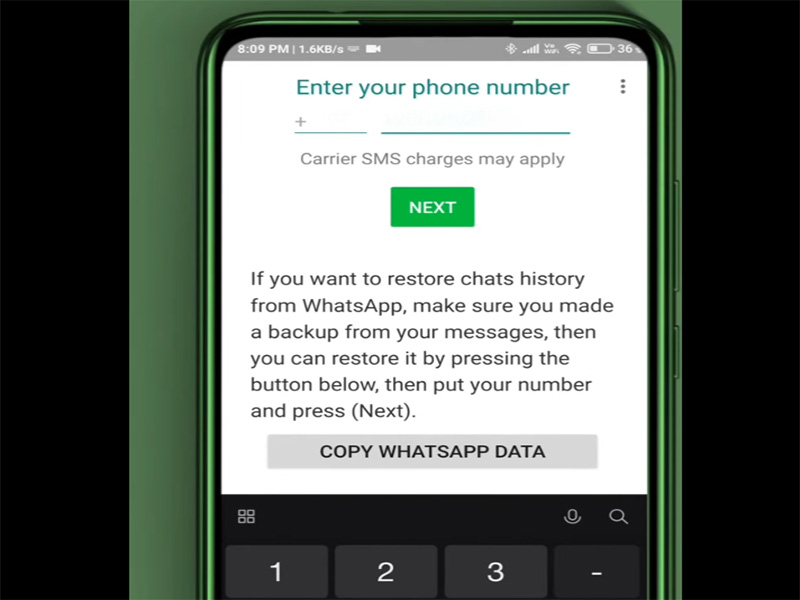
- Enter your phone number and verify it with the OTP sent to your phone.
- After verification, FMWhatsApp will automatically detect the local backup you moved earlier and prompt you with “Restore Chat Backup”.
- Tap “Restore” and wait for the process to complete. The time taken depends on the size of your backup.
- Once restored, tap “Next” to access your FMWhatsApp chat list.
FMWhatsApp Local Backup Restore Guide
To make sure you can always restore FMWhatsApp without losing chats, even if you reinstall the app or switch phones, follow this FMWhatsApp local backup restore guide for ongoing backup management:
- Create FMWhatsApp Local Backups Regularly: Open FMWhatsApp, go to FM Settings > Chats > Chat Backup, and tap “Back Up” to save your current chats to the FMWhatsApp > Databases folder. This ensures you have a recent backup if you ever need to restore.
- Store Backups Safely: Copy the FMWhatsApp > Databases folder to your phone’s SD card or a cloud storage service for extra security. This way, you can access your backup even if you lose your phone.
- Restore Old FMWhatsApp Backups: If you want to restore old backup whatsapp or an older FMWhatsApp backup, follow the same steps as above: copy the old backup file to the FMWhatsApp > Databases folder, rename it, and restore during app setup.
- Avoid Overwriting Backups: When creating new backups, rename old ones with the date to prevent overwriting them. This lets you go back to older chats if needed.
Common Issues & Fixes
Even with the right steps, you might face minor issues. Here are quick fixes to ensure you restore FMWhatsApp without losing chats:
- Backup Not Detected: Ensure you’re using the latest FMWhatsApp version, the backup file is in the correct folder.
- Chats Missing After Restore: If some chats are missing, the backup file may be corrupted. Recreate the original WhatsApp backup, re-migrate it to FMWhatsApp, and try again.
- FMWhatsApp Crashes During Restore: Free up storage space on your phone and update to the latest version.
- Can’t Restore Old Backup: For restore old backup whatsapp, ensure the old backup file is not corrupted and matches the encryption version of your current FMWhatsApp.
Why FM WhatsApp Update Download Is Essential for Backup Restore
We can’t stress enough the importance of fm whatsapp update download when restoring backups. The 2026 latest FMWhatsApp version includes:
- Improved compatibility with original WhatsApp backup files, reducing the risk of chat loss.
- Bug fixes for backup detection, ensuring FMWhatsApp recognizes local backups quickly.
- Enhanced anti-ban protection, keeping your account safe while using the MOD app.
- Better backup management tools, making it easier to create and restore local backups.
Final Thoughts
Restoring your original WhatsApp backup to FMWhatsApp doesn’t have to result in lost chats. By following the steps above, you can seamlessly transfer all your conversations, photos, and videos. Whether you want to restore old backup whatsapp or your latest chats, this method ensures you restore FMWhatsApp without losing chats.
Now that you know how to restore your original WhatsApp backup to FMWhatsApp, you can make the switch with confidence and no more worrying about lost messages!