Privacy is a top priority for most WhatsApp users, and FM WhatsApp—one of the most popular modified versions of WhatsApp—takes this to the next level with advanced fm whatsapp hide chat settings. While hiding sensitive conversations is straightforward, many users struggle when they need to unhide chat on fm whatsapp later. In this comprehensive guide, we’ll walk you through exactly how to reveal hidden chats, explain the difference between FM WhatsApp’s exclusive hide feature and the standard archive, and share tips for staying safe with fm whatsapp anti banned protection and fm whatsapp new version updates.
What Happens When You Hide a Chat in FM WhatsApp?
FM WhatsApp offers advanced privacy controls beyond the official app. With fm whatsapp hide chat settings, you can hide individual chats, lock them with a PIN, or move them into a secret section.
This is useful when you want to:
- Keep private conversations away from the main chat list
- Protect chats from people using your phone
- Reduce clutter in your inbox
- Create an extra layer of privacy
The good news is that hidden chats are not deleted—they are simply stored in a private area.
Method 1: Unhide Chat on FM WhatsApp
This is the most secure way to hide and unhide chats on FM WhatsApp. If you used the app’s exclusive hide function, follow these steps to reveal your hidden conversations:
- Open FM WhatsApp.
- Double tap the FMWhatsApp icon.
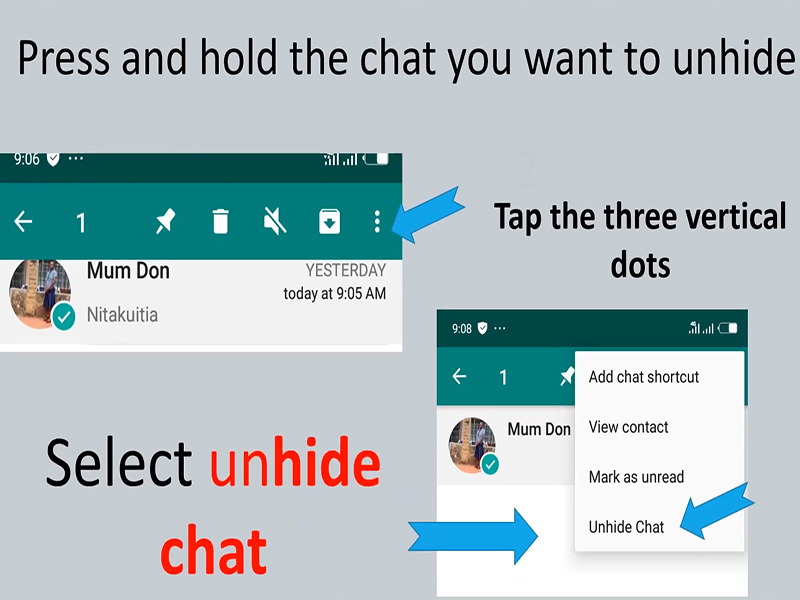
- 3. You’ll now see a list of all your hidden chats. Find the one you want to unhide and long-press it.
- 4. Tap the three dots that appear in the top-right corner of the screen.
- 5. Select “Unhide Chat” from the dropdown menu.
- 6. Enter your PIN, pattern, or password that you set when hiding the chat.
- Confirm your action if prompted, and the chat will immediately return to your main chat list.
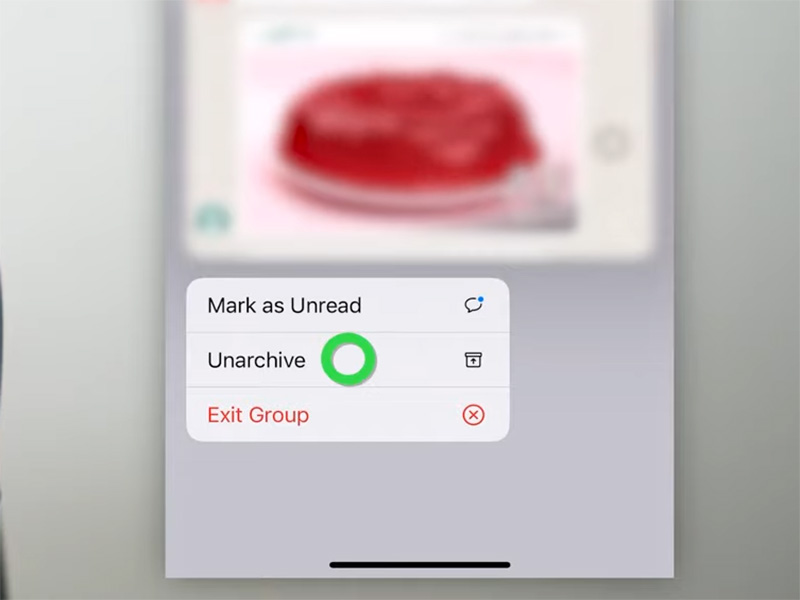
Method 2: Unarchive Chats on FM WhatsApp
If you used the standard archive feature to hide your chats, follow these simpler steps:
- Open FM WhatsApp and go to the Chats tab.
- Scroll to the top of the chat list and tap on the “Archived” section that appears.
- Find the chat you want to unarchive and long-press it.
- Tap the “Unarchive” icon at the top of the screen.
- The chat will instantly move back to your main chat list, fully unhidden.
Exploring FM WhatsApp Hide Chat Settings
FM WhatsApp gives you complete control over how you hide and manage your chats through its dedicated settings menu. Here’s how to access and customize these options:
- Open FM WhatsApp and tap the three dots in the top-right corner.
- Select “FM WhatsApp Settings”.
- Scroll down and find the “Privacy” or “Security” section.
- Look for options like “Hide Chat Settings” or “Private Chats”:
- Set or change your hidden chat security code (PIN, pattern, or password)
- Choose how to access hidden chats
- Enable or disable notifications for hidden chats
- Customize how hidden chats appear in your app
- Make your desired changes and save the settings—your fm whatsapp hide chat settings are now updated!
Staying Safe: FM WhatsApp Anti Banned Protection
When using modified WhatsApp versions like FM WhatsApp, account security is crucial. Here’s how to maximize fm whatsapp anti banned protection:
- Always use the latest version: fm whatsapp new version updates include improved anti-ban algorithms that reduce the risk of account restrictions.
- Avoid suspicious features: Some advanced features can trigger bans—stick to core privacy features.
- Don’t share your hidden chat password: Your security code is your first line of defense for private conversations.
- Back up your chats regularly: Use FM WhatsApp’s local backup feature to protect your data.
- Download from trusted sources: Only get FM WhatsApp from reputable sites to avoid modified versions with malware or poor anti-ban protection.
Why FM WhatsApp New Version Matters for Unhiding Chats
Upgrading to the fm whatsapp new version offers several benefits for hiding and unhiding chats:
- Improved hidden chat access with more intuitive navigation
- Enhanced security features, including biometric authentication for hidden chats
- Bug fixes for smoother unhide chat operations
- Better integration with other privacy features
- Stronger fm whatsapp anti banned protection to keep your account safe
Troubleshooting: Common Unhide Chat Issues
If you’re having trouble unhiding chats on FM WhatsApp, try these solutions:
- Forgot your hidden chat password?
Use the “Forgot Password” option or reinstall FM WhatsApp (make sure to back up first).
- Hidden chats not showing up?
Update to fm whatsapp new version. Older versions may have bugs in the hidden chat system.
- Can’t find the unhide option?
Make sure you’re using the correct method—built-in hide feature vs. standard archive.
- Chats re-hide automatically?
Check your fm whatsapp hide chat settings to ensure auto-hide isn’t enabled.
Final Thoughts
Unhiding chats on FM WhatsApp is simple once you know the right method—whether you’re using the built-in private hide feature or the standard archive. By mastering unhide chat on fm whatsapp techniques, customizing your fm whatsapp hide chat settings, staying updated withfm whatsapp new version releases, and prioritizing fm whatsapp anti banned protection, you can enjoy complete privacy control over your conversations.