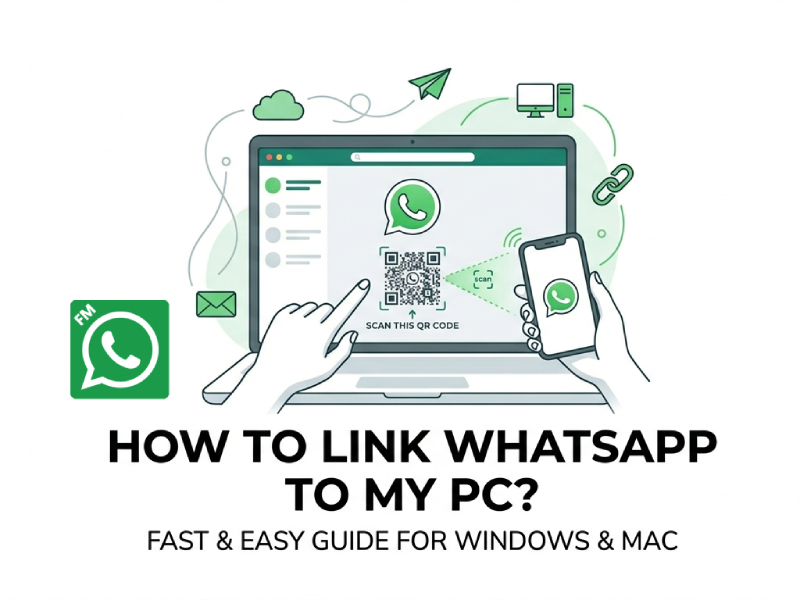
Using WhatsApp on your computer can greatly simplify daily communication, allowing you to type faster, manage chats on a larger screen, and handle files more easily. The good news is that connecting WhatsApp to your computer is very simple and can be done in just a few steps, especially when you use tools like fm whatsapp web to sync your messages smoothly between devices without interrupting your workflow.
In this guide, we’ll introduce several ways to connect WhatsApp to your computer and provide some tips to help you get a smooth user experience.
What You Need Before Starting
Before connecting WhatsApp to your computer, it’s best to check a few basic things first. This can save time and avoid problems during the setup process.
- A smartphone with WhatsApp installed
Make sure your app is already set up and working. It’s better to update WhatsApp to the latest version, since older versions may not support all features. - A stable internet connection
Both your phone and computer need to be connected to the internet. Unstable network connection may cause QR code scanning failure or information synchronization delay. - A computer with a browser or the WhatsApp Desktop app
You can use browsers such as Chrome, Edge, or Firefox. If you prefer, you can also install the desktop application for a more stable experience. - Access to your phone during setup
You need to scan the QR code with your mobile phone. Please keep your phone nearby and unlocked when connecting. - Enough battery on your phone
If your phone battery is low, the connection may drop during setup or when using WhatsApp on your computer. - Basic permission settings enabled
Your phone needs to allow WhatsApp access to its camera, as scanning QR codes requires the camera.
Taking the time to check these points can make the whole process smoother and help you avoid minor problems later.
Method 1: Using WhatsApp Web
This is the most common way to use WhatsApp on a PC.
Steps:
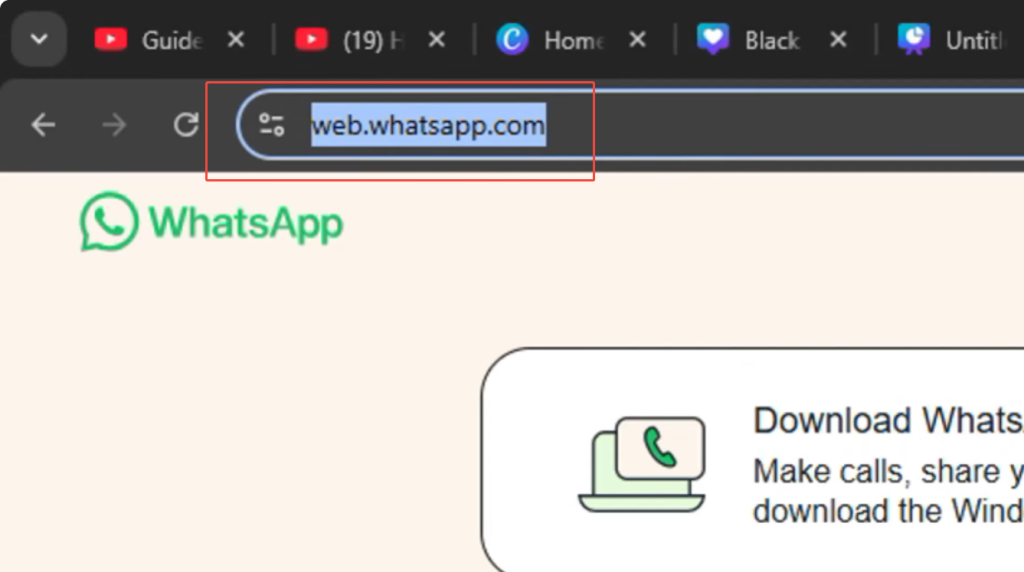
- Open a browser on your computer
- Go to the WhatsApp Web page
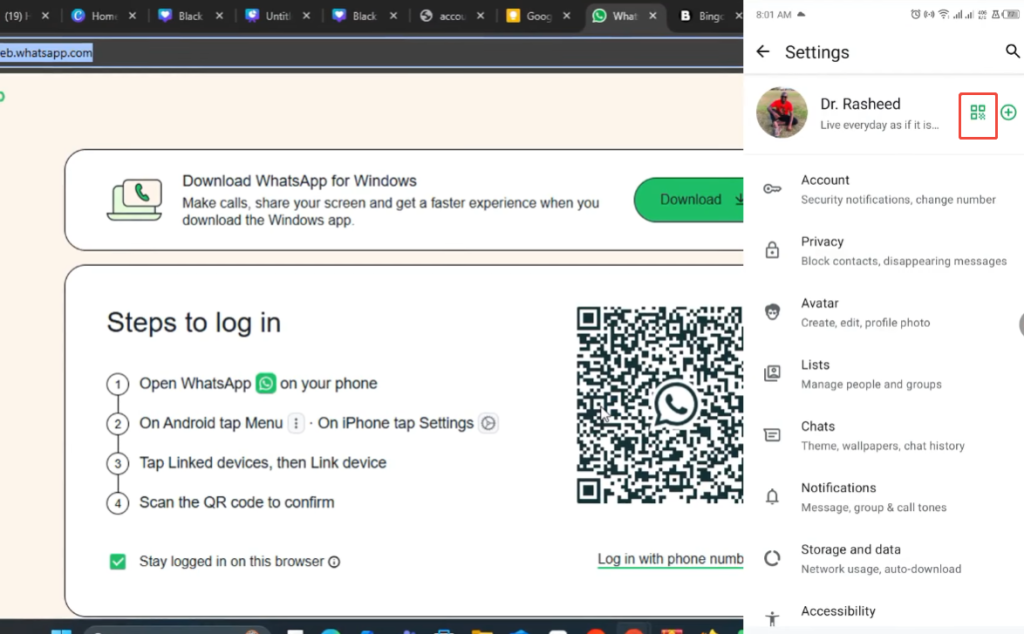
- You will see a QR code on the screen
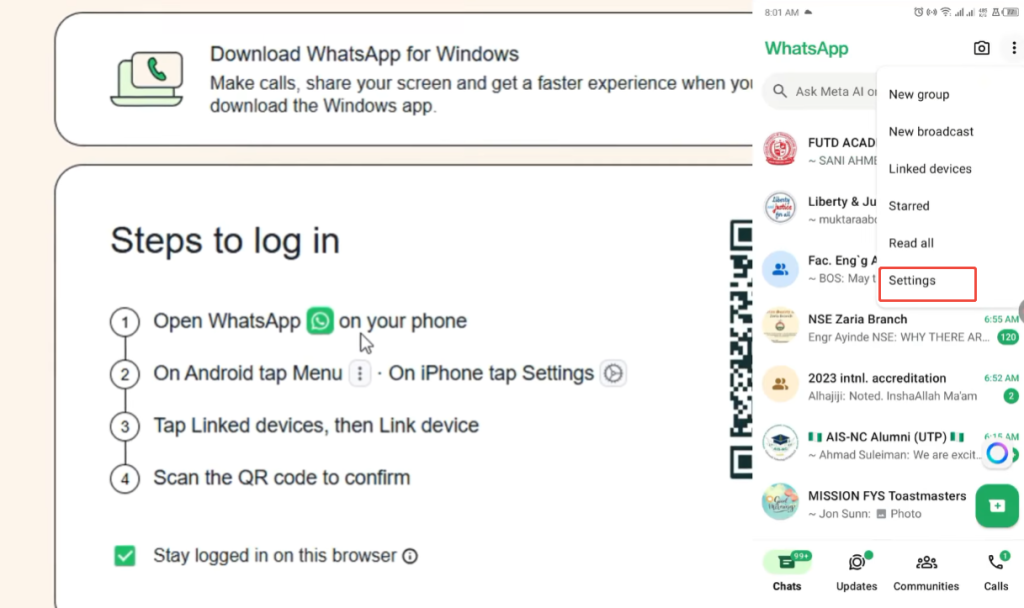
- Open WhatsApp on your phone
- Tap the menu
- Select “Linked devices”
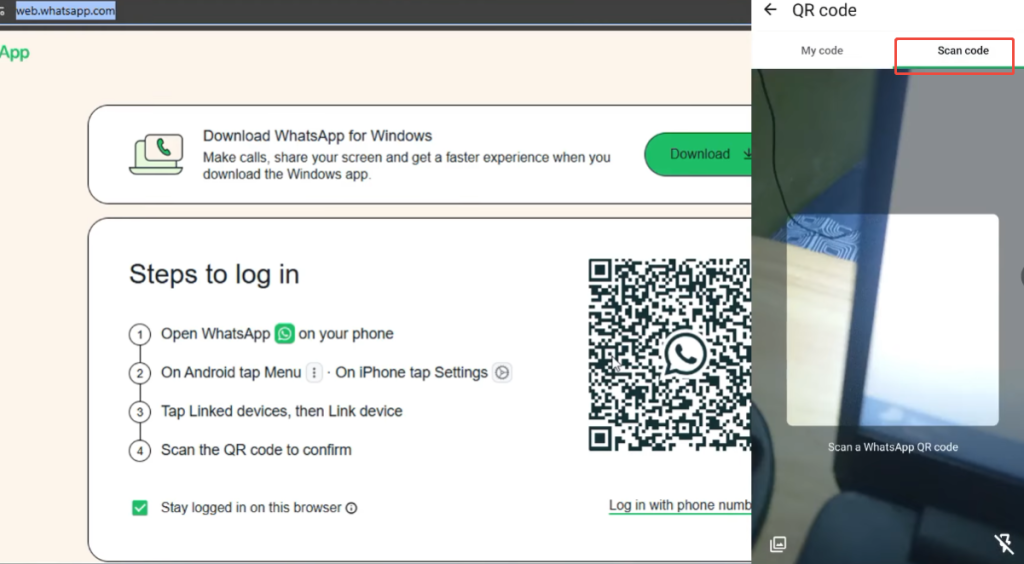
- Tap “Link a device”
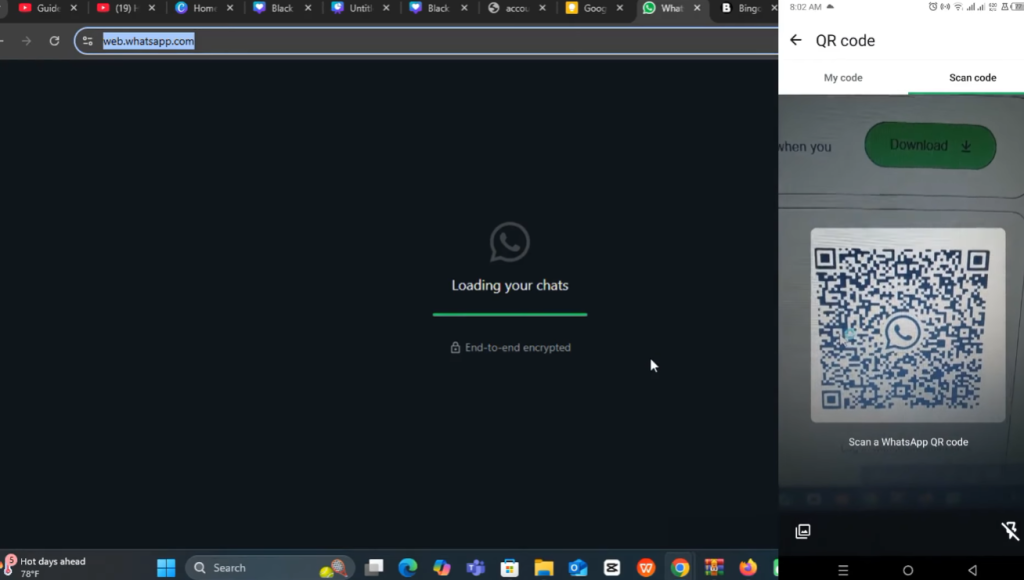
- Scan the QR code on your computer
After scanning, your chats will appear on your PC almost instantly.
Method 2: Using WhatsApp Desktop App
If you prefer an app instead of a browser, you can use the desktop version.
Steps:
- Download WhatsApp Desktop from the official website or app store
- Install and open the app
- A QR code will appear
- Open WhatsApp on your phone
- Go to “Linked devices”
- Scan the QR code
The process is the same as WhatsApp Web, but the app may feel more stable for long use.
Key Features on PC
Once WhatsApp is connected to your computer, you can use many useful features to make chatting and file handling more convenient.
- Send and receive messages: You can chat in real time, just like on your phone. Messages are synchronized instantly, so you won’t miss any information whether you switch devices or not.
- Faster typing with keyboard: Using a full-size keyboard can help you reply faster, especially when replying to long messages or engaging in work-related chats. You can also use keyboard shortcuts such as copy and paste to save time.
- Share and manage files easily: It’s much more convenient to drag and drop files from your computer into the chat window. You can send documents, pictures, and videos directly without first transferring them to your phone. Downloaded files will also be saved directly to your computer for easy retrieval and organization.
- View media on a larger screen: Photos and videos look clearer on a computer screen. This is useful when checking details, watching clips, or reviewing shared content.
- Desktop notifications: You can receive message notifications on your computer while working or browsing the web. This way, you can stay up-to-date with the latest news without having to constantly check your phone.
- Search and manage chats: Finding old messages on a computer is usually faster. You can quickly search for keywords, scroll through chat history, and manage conversations more easily.
- Use multiple chats at once: On a large screen, it’s easier to switch between chats or focus on multiple conversations simultaneously without losing attention.
These features make the PC version of WhatsApp more than just a copy of the mobile app; it’s a more practical daily communication tool, especially suitable for users who spend long hours on their computers.
Tips for a Better Experience
To make WhatsApp on your computer run more smoothly and reliably, developing a few small habits can be very helpful.
Make sure your phone and computer are connected to a stable network, as this helps ensure smooth performance when you download for pc windows 10 and set up WhatsApp on your desktop. While the newer versions support a certain level of independent use, having a reliable connection on both devices still plays an important role in faster loading times and better message synchronization.
Enable desktop notifications. This way, you won’t need to frequently check your browser or application to see new messages. This is especially useful when you are using a computer for work or study.
Learn some basic keyboard shortcuts. For example, you can quickly search chat history, create new messages, or switch between conversations. This will save you a lot of time if you frequently use WhatsApp on your computer.
Regularly organize your chat history. Pin important conversations, archive unnecessary chat history, and clear old messages when needed. A clean chat list allows you to focus more on what matters.
Be extra careful when using shared or public computers. Be sure to log out after use to ensure your account security. You can view active sessions via your mobile phone and delete any devices you cannot recognize.
Keep your apps or browser updated to the latest version. Updates typically fix minor bugs and improve performance, which helps avoid connectivity or synchronization issues.
By following these simple tips, you’ll find using WhatsApp on your computer to be smoother, more seamless, and more convenient.
Why Use WhatsApp on a PC?
Using WhatsApp on a computer is more than just about convenience. It can also improve how you handle messages, files, and daily tasks.
Typing on a keyboard is much faster than typing on a mobile phone. This is very useful for long conversations, work messages, or replying to multiple chats at the same time. You can also easily copy and paste text, saving time when sharing links or notes.
A larger screen makes everything clearer. Reading long messages, viewing pictures, or watching shared videos on a computer is more comfortable. Compared to staring at a small phone screen for a long time, it can also effectively reduce eye fatigue.
Another advantage is more convenient file handling when using a whatsapp desktop app. On a computer, you can simply drag and drop files into the chat window, making it easy to send documents, photos, or videos without searching through your phone storage. Files you download are also easier to organize and manage on your computer.
Using WhatsApp on a computer is also very useful, especially when you are working or studying. You don’t need to switch between different devices, which helps you stay focused. You can reply to messages while doing other tasks, such as writing, browsing the web, or attending online meetings.
It also supports fast multitasking, allowing you to open multiple chat windows at once and switch between them easily while keeping conversations active. This is especially helpful for handling many messages efficiently. To enjoy these features, you can get the fm whatsapp download new version and experience smoother daily communication.
Using WhatsApp on a computer makes communication faster, more efficient, and more comfortable, especially suitable for users who spend long hours on the computer.
Security and Privacy Tips
Protecting your account security is crucial when using WhatsApp on a computer, especially when using a shared or public computer.
Be sure to log out after using WhatsApp Web or Desktop on a public device. This prevents others from accessing your chat history after you leave. You can log out directly on your computer or in the “Linked Devices” section on your mobile phone.
Regularly inspect associated devices. You can view all active conversations in your phone’s WhatsApp settings. If you find any unknown devices, please remove them immediately.
Avoid saving sensitive files on shared computers. If you download photos or documents, please be sure to delete them after use.
By following these simple habits, you can enjoy the convenience of WhatsApp while using it on your computer in a safer and more controlled way.